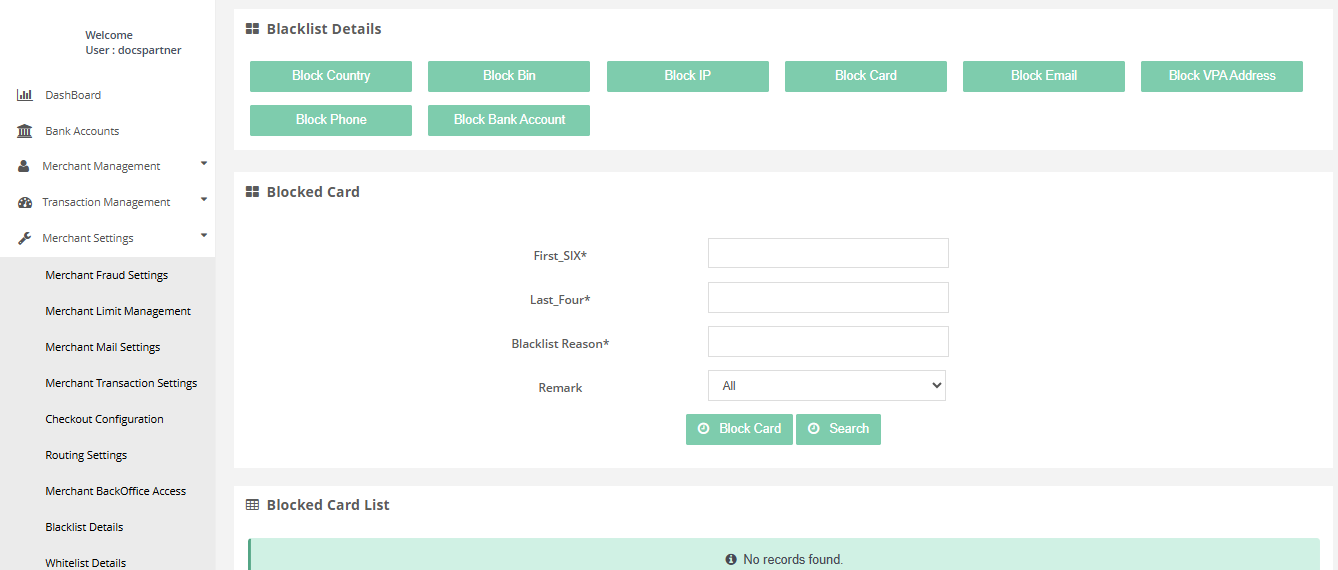
Blacklist Details
You can handle the blacklist details settings for following functionalities:
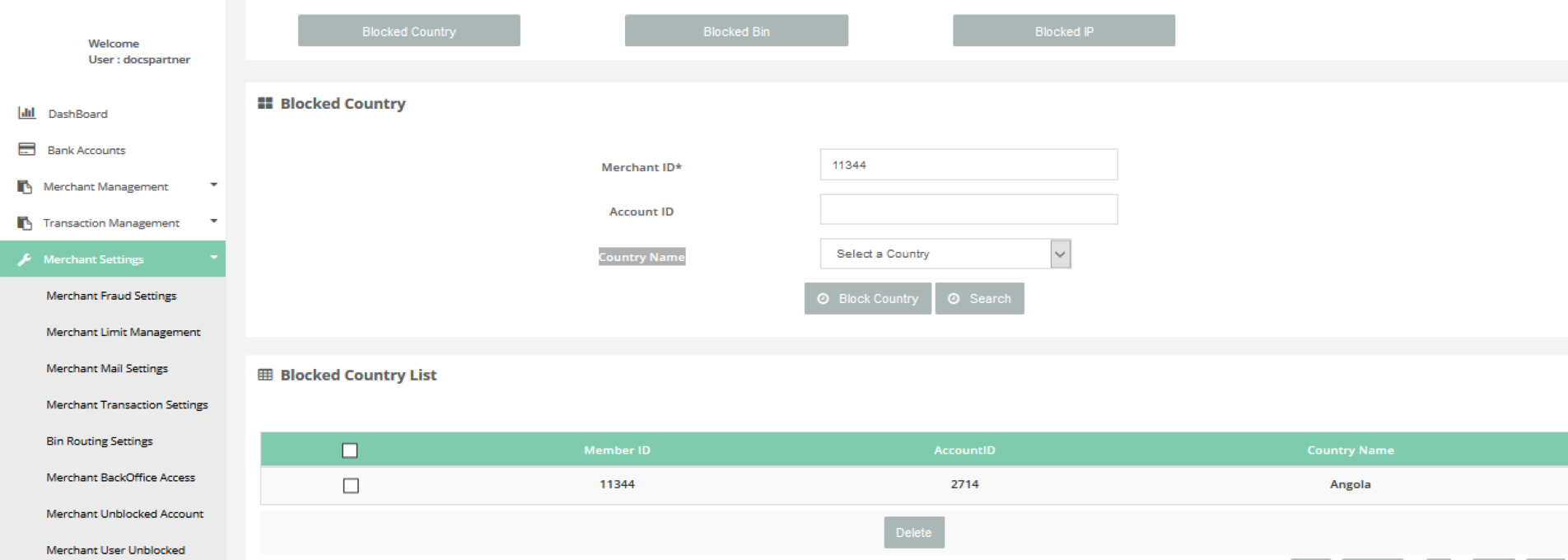
Blacklist Details > Block Country
In this page you can Search / Add / Remove whitelisted Details for a specific Merchant.
How to access page?
After login you need to click on "Blacklist Details" section under "Merchant Settings" tab in the left navigation panel of Partner's back office. On the resulting page click on "Block Country" button.
Search criteria
You can search the Block Country details by selecting :
- Merchant ID *
- Account ID
- Country Name
Result details
The search filter gives below details:
- Merchant ID
- Account ID
- Country Name
Block Country
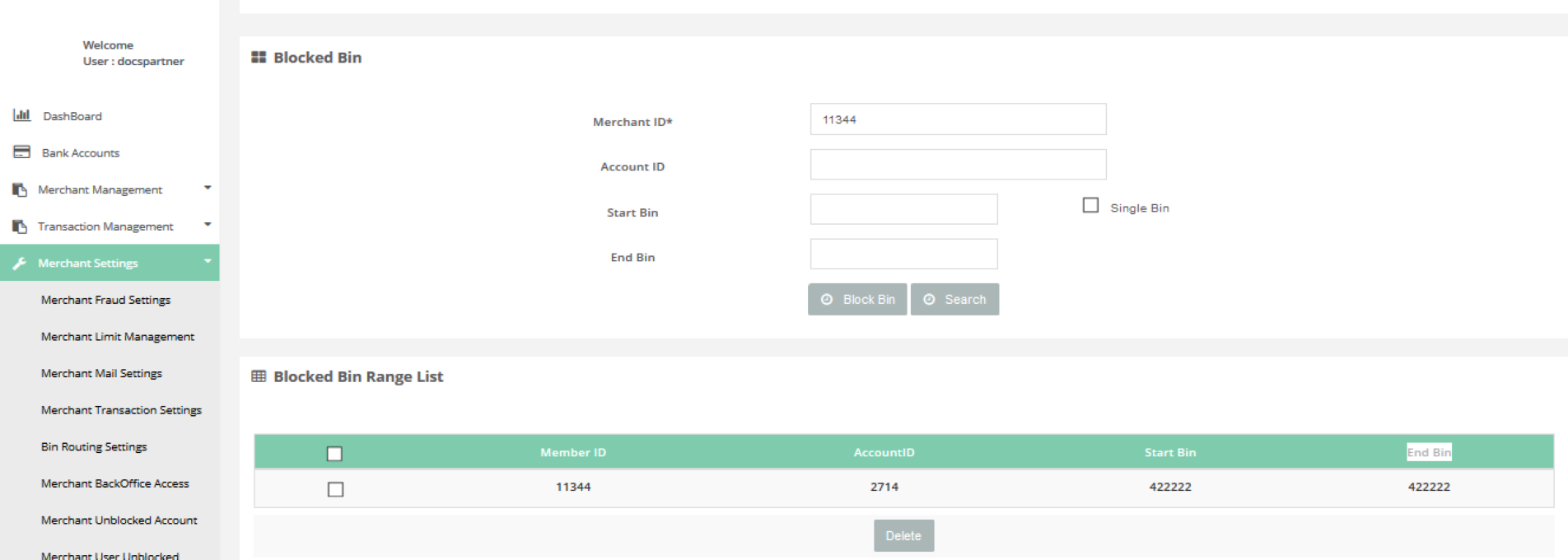
Blacklist Details > Block Bin
In this page you can Search / Add / Remove whitelisted Details for a specific Merchant.
How to access page?
After login you need to click on "Blacklist Details" section under "Merchant Settings" tab in the left navigation panel of Partner's back office. On the resulting page click on "Block Bin" button.
Search criteria
You can search the Block Bin details by selecting :
- Merchant ID*
- Account ID
- Start Bin
- End Bin
Result details
The search filter gives below details:
- Merchant ID
- Account ID
- Start Bin
- End Bin
Block Bin
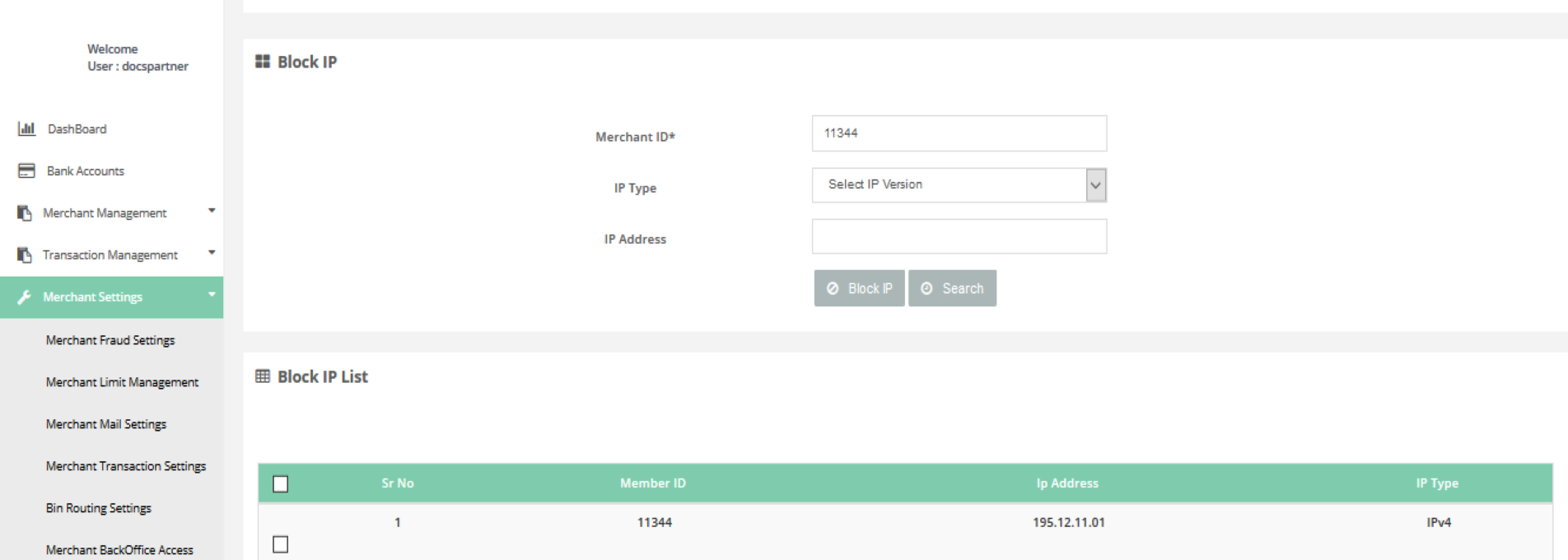
Blacklist Details > Block IP
In this page you can Search / Add / Remove whitelisted Details for a specific Merchant.
How to access pages?
After login you need to click on "Blacklist Details" section under "Merchant Settings" tab in the left navigation panel of Partner's back office. On the resulting page click on Block IP button.
Search criteria
You can search the Block IP details by selecting:
- Merchant ID *
- IP Type
- IP Address
Result details
The search filter gives below details:
- Merchant ID *
- IP Type
- IP Address
Block IP
Blacklist Details > Block Bank Account
In this page you can Search / Add / Remove whitelisted Details for a specific Merchant.
How to access pages?
After login you need to click on "Blacklist Details" section under "Merchant Settings" tab in the left navigation panel of Partner's back office. On the resulting page click on Block Bank Account button.
Search criteria
You can search the Block Bank Account details by selecting:
- Bank Account Number
- Reason
Result details
The search filter gives below details:
- Bank Account Number
- Reason
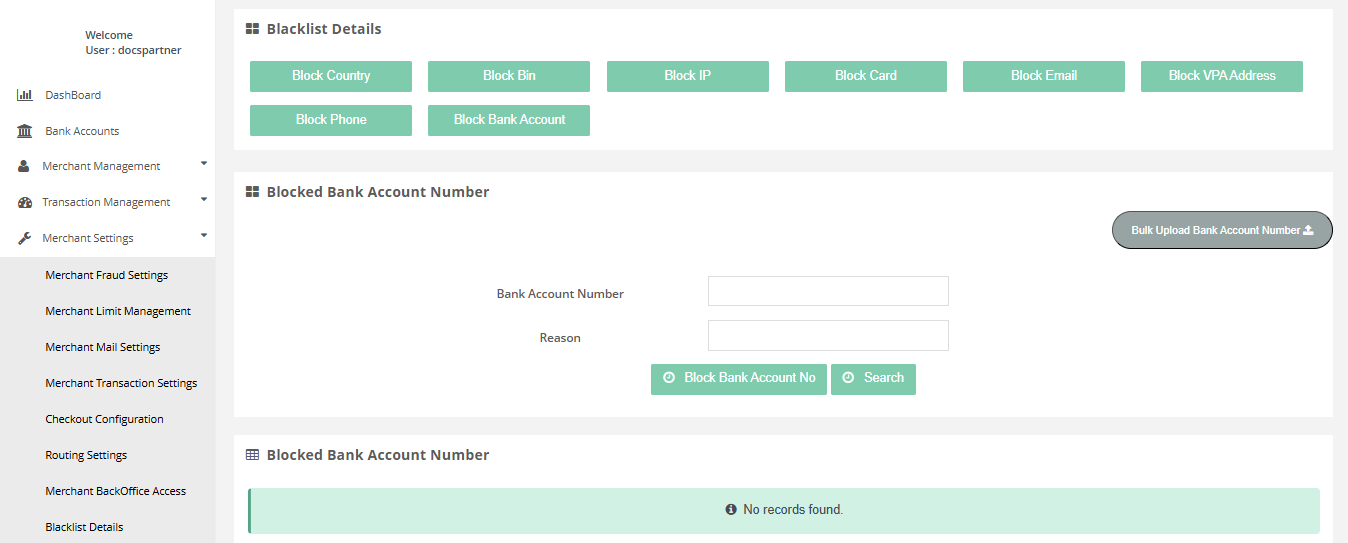
Block Bank Account
Blacklist Details > Block Phone
In this page you can Search / Add / Remove whitelisted Details for a specific Merchant.
How to access pages?
After login you need to click on "Blacklist Details" section under "Merchant Settings" tab in the left navigation panel of Partner's back office. On the resulting page click on Block Phone button.
Search criteria
You can search the Block Phone details by selecting:
- Phone Number
- Blacklist Reason*
Result details
The search filter gives below details:
- Phone Number
- Blacklist Reason*
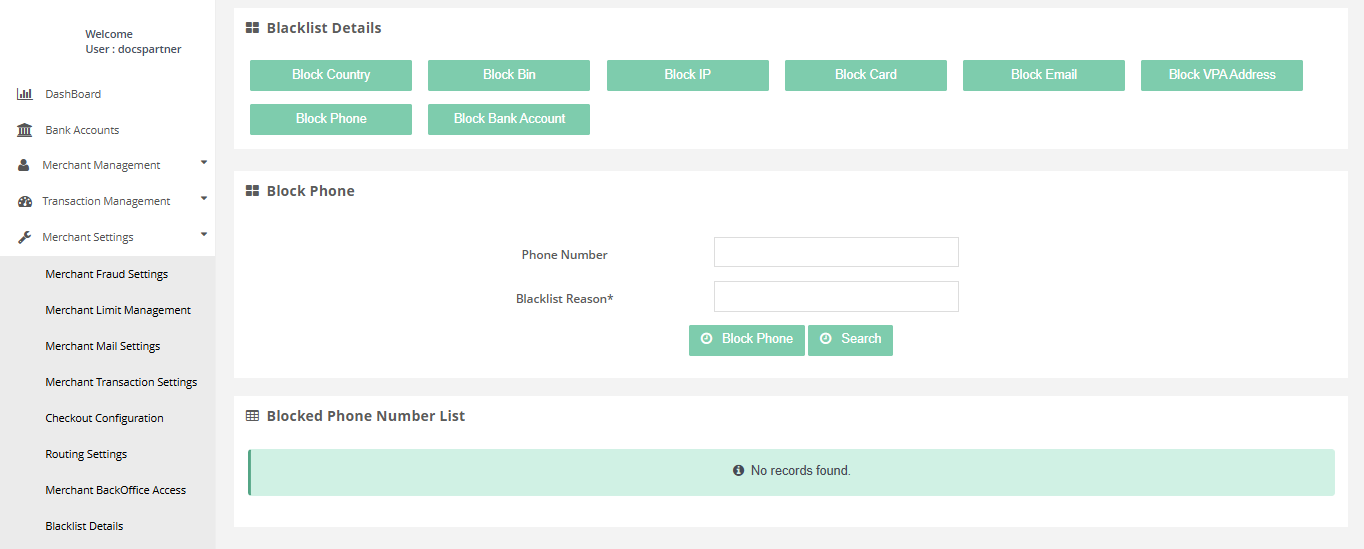
Block Phone
Blacklist Details > Block VPA Address
In this page you can Search / Add / Remove whitelisted Details for a specific Merchant.
How to access pages?
After login you need to click on "Blacklist Details" section under "Merchant Settings" tab in the left navigation panel of Partner's back office. On the resulting page click on Block VPA Address button.
Search criteria
You can search the Block VPA Address details by selecting:
- VPA Address
- Blacklist Reason*
Result details
The search filter gives below details:
- VPA Address
- Blacklist Reason*
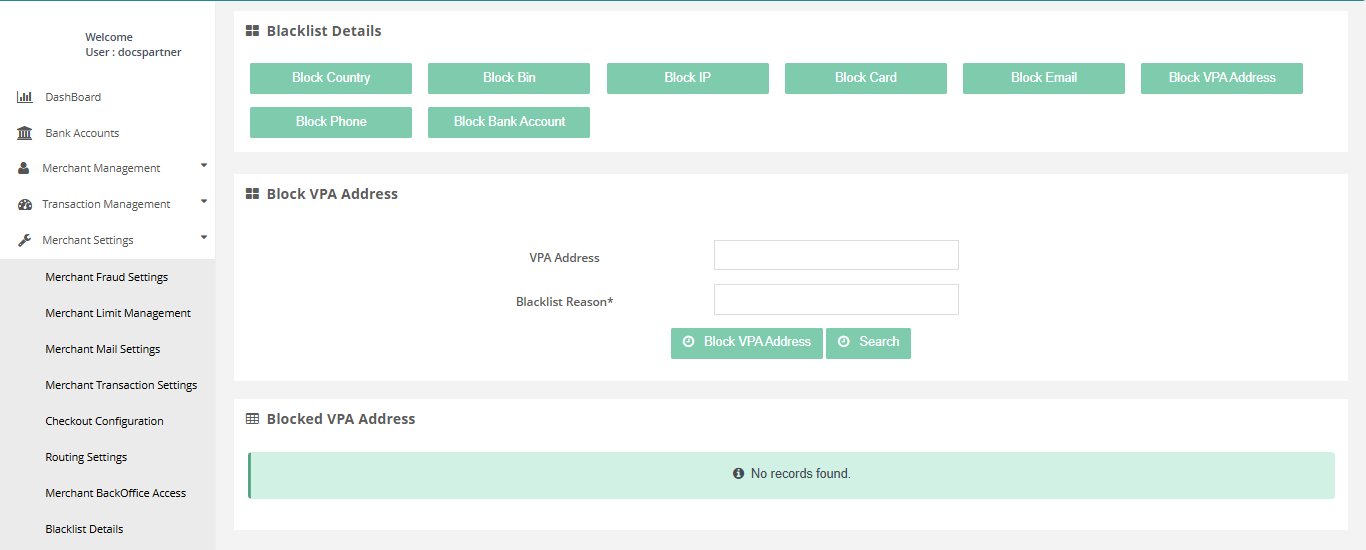
Block VPA Address
Blacklist Details > Block Email ID
In this page you can Search / Add / Remove whitelisted Details for a specific Merchant.
How to access pages?
After login you need to click on "Blacklist Details" section under "Merchant Settings" tab in the left navigation panel of Partner's back office. On the resulting page click on Block Email ID button.
Search criteria
You can search the Block Email ID details by selecting:
- Email Address
- Reason
- Remark
Result details
The search filter gives below details:
- Email Address
- Reason
- Remark
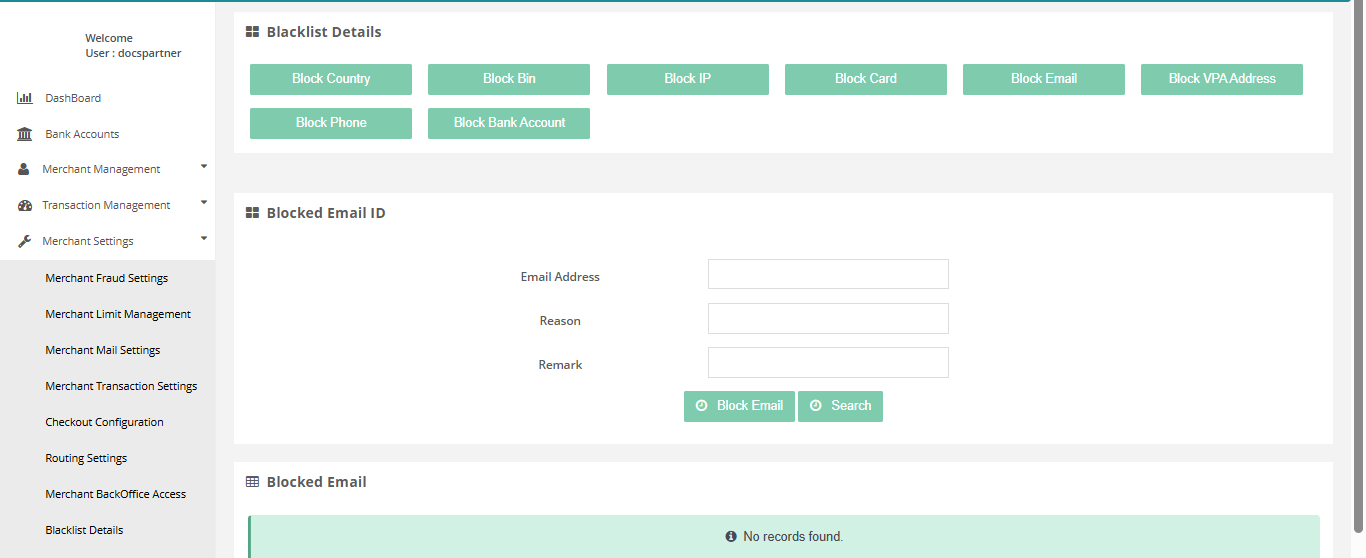
Block Email ID
Blacklist Details > Block Card
In this page you can Search / Add / Remove whitelisted Details for a specific Merchant.
How to access pages?
After login you need to click on "Blacklist Details" section under "Merchant Settings" tab in the left navigation panel of Partner's back office. On the resulting page click on Block Card button.
Search criteria
You can search the Block Card details by selecting:
- First_SIX*
- Last_Four*
- Blacklist Reason*
- Remark
Result details
The search filter gives below details:
- First_SIX*
- Last_Four*
- Blacklist Reason*
- Remark