Fraud Management
You can handle the following functionalities in this tab:
Fraud Management > Fraud System Account Master
In this page you can retrieve and update the Fraud System Account Master setting.
How to access page?
After login you need to click on "Fraud System Account Master" section under "Fraud Management" tab in the left navigation pannel of Partner's back office.
Search criteria
You can search fraud account by Fraud System Account ID.
Result details
It displays the fraud Fraud System Account Details.
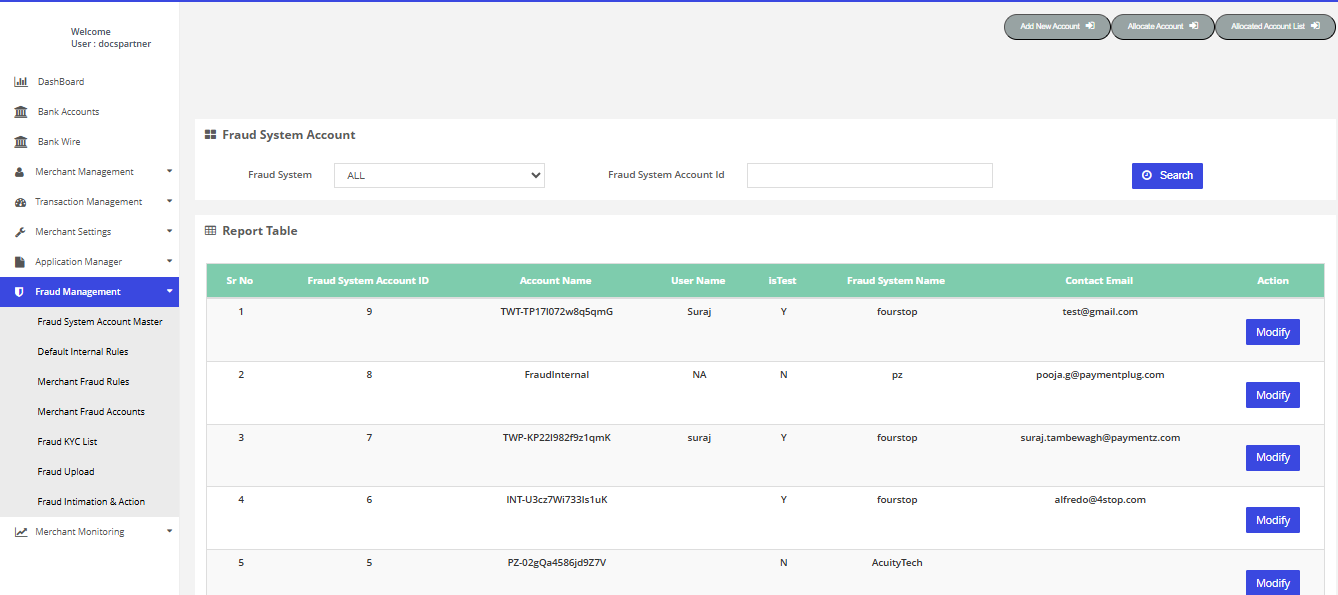
Fraud System Account Master
Fraud Management > Default Internal Rules
In this page you can view and update the Default Fraud Configuration.How to access page?
After login you need to click on "Default Internal Rules" section under "Fraud Management" tab in the left navigation panel of Partner's back office.
Result details
It displays the Default Internal Fraud Configuration for the Partner’s merchant. All the default Fraud rules are applied, if Internal Fraud check is enabled for the merchant and Specific Default Internal Rules are not found.
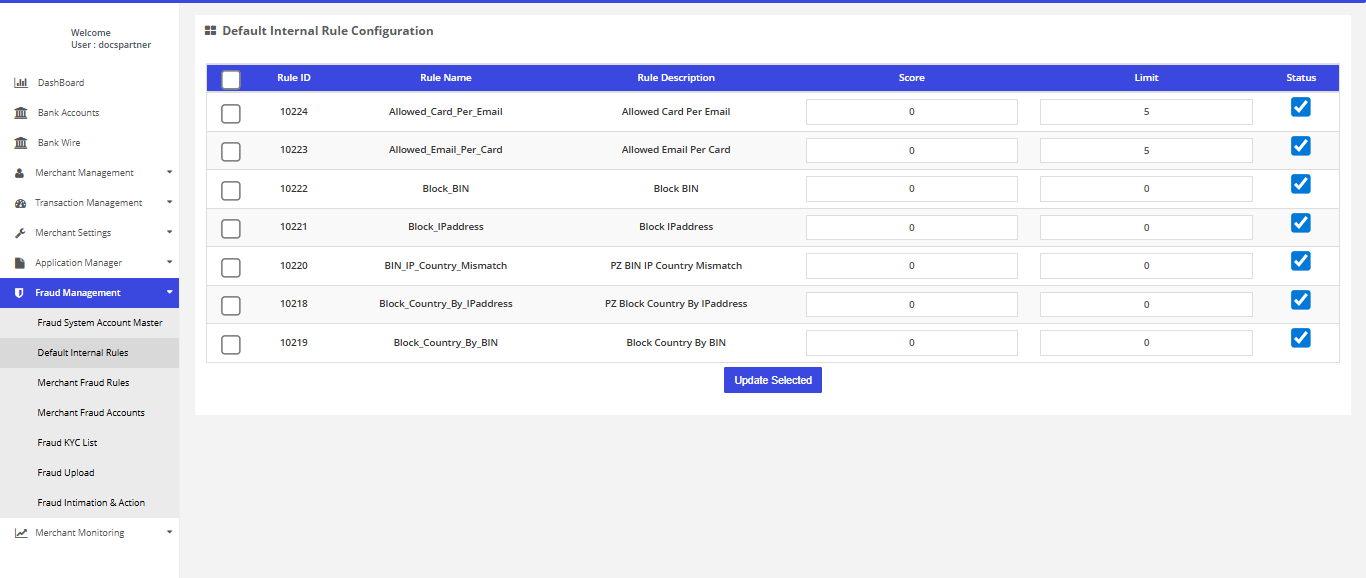
Default Internal Rules
Fraud Management > Merchant Fraud Rules
In this page you can check the transactions list which are verified by fraud engine.
How to access page?
After login you need to click on "Merchant Fraud Rules" section under "Fraud Management" tab in the left navigation pannel of Partner's back office.
Search criteria
You can search fraud account by member ID.
Result details
It displays the Merchant Fraud Rules.
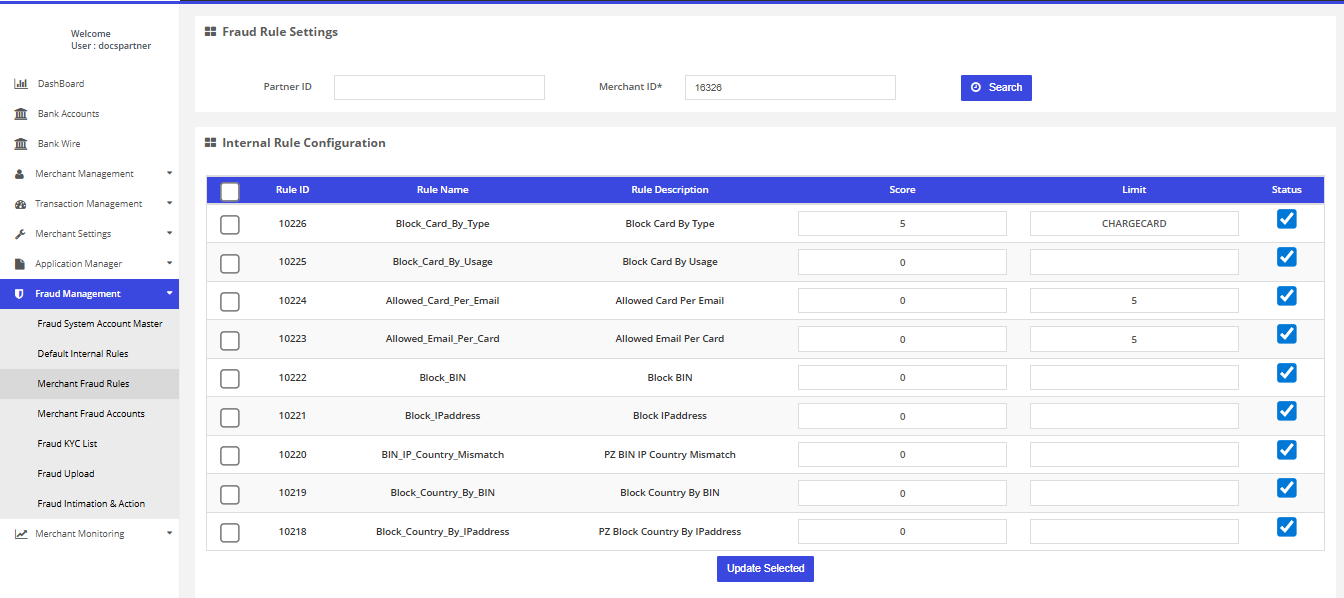
Merchant Fraud Rules
Fraud Management > Merchant Fraud Accounts
In this page you can view and update the Default Fraud Configuration.
How to access page?
After login you need to click on "Merchant Fraud Accounts" section under "Fraud Management" tab in the left navigation panel of Partner's back office.
Result details
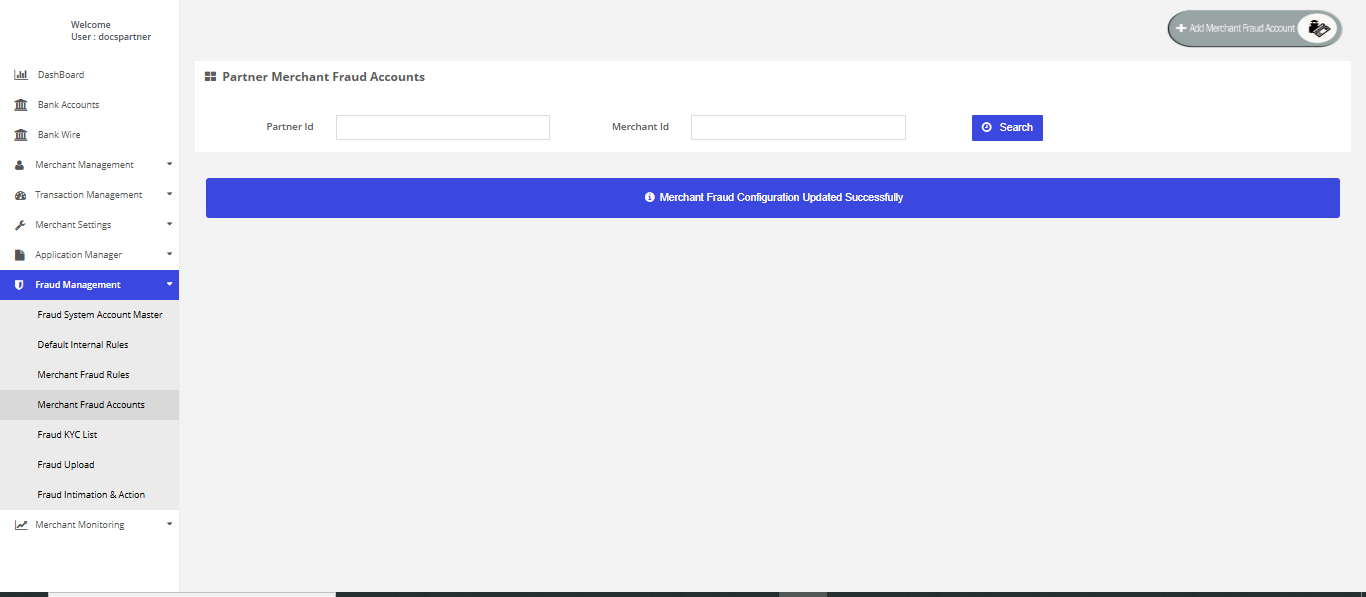
Here you can add new partner merchant fraud account.
Here you can add new user for partner merchant fraud account.
How to access pages?After Login, you need to click on Fraud Management section in the left navigation pannel of Partner’s back office and then you need to click on "Merchant Fraud Account" button which is situated at rightmost top of search filter.
Result Details?Here you can add new partner merchant fraud account.
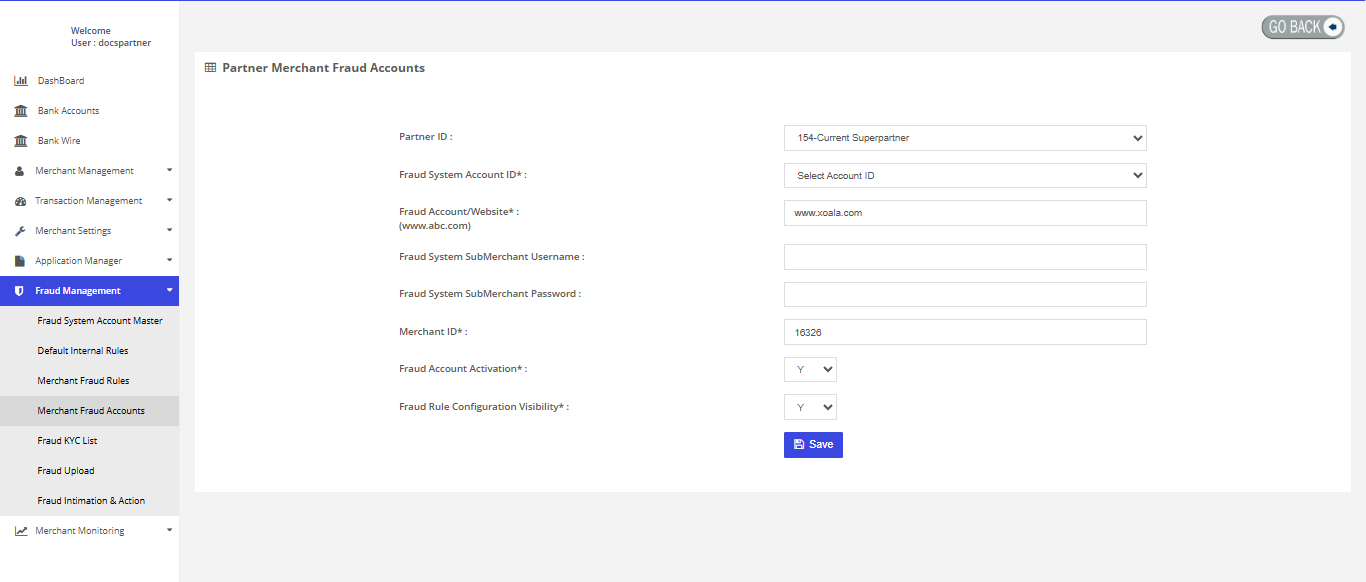
Add New User
Add New User
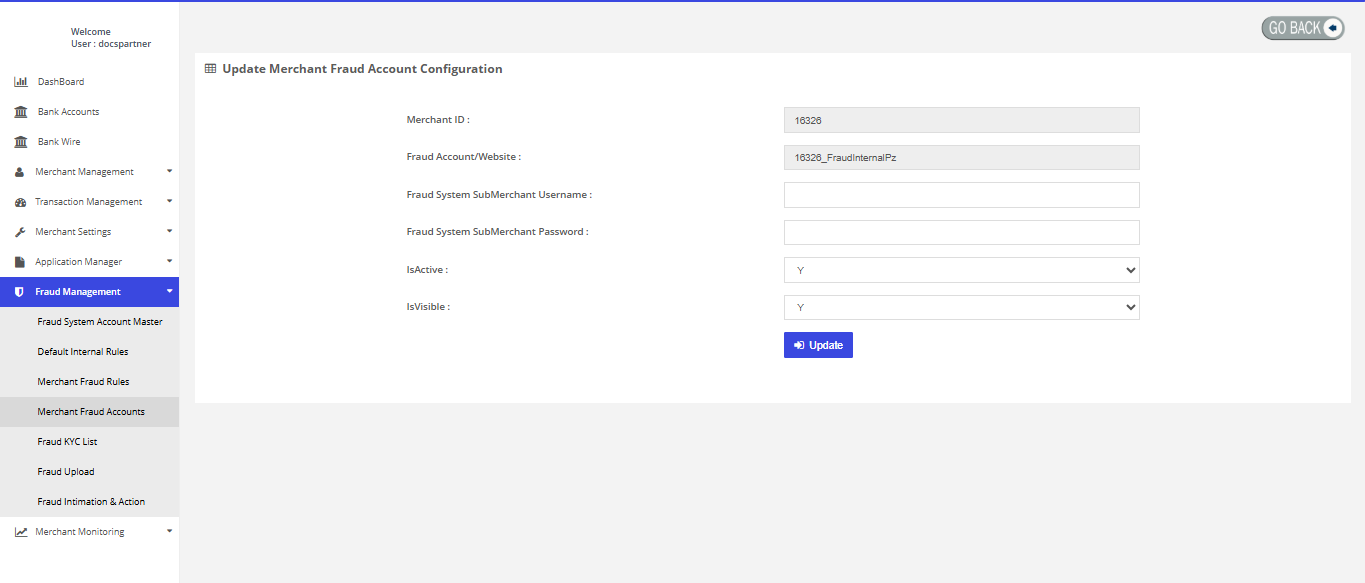
Here you can modify the merchant fraud account configuration.
How to access pages?After Login, you need to click on Fraud Management section in the left navigation pannel of Partner’s back office.
Search criteriaYou can search fraud accounts on Member ID.
Result Details?Here you can update fraud details.
Edit user
Fraud Management > Fraud KYC List
In this page you can check the KYC list which are verified by fraud engine.
How to access page?
After login you need to click on "Fraud KYC List" section under "Fraud Management" tab in the left navigation pannel of Partner's back office.
Search criteria
You can search fraud KYC details by customer reg ID.
Result details
It displays the fraud KYC list.
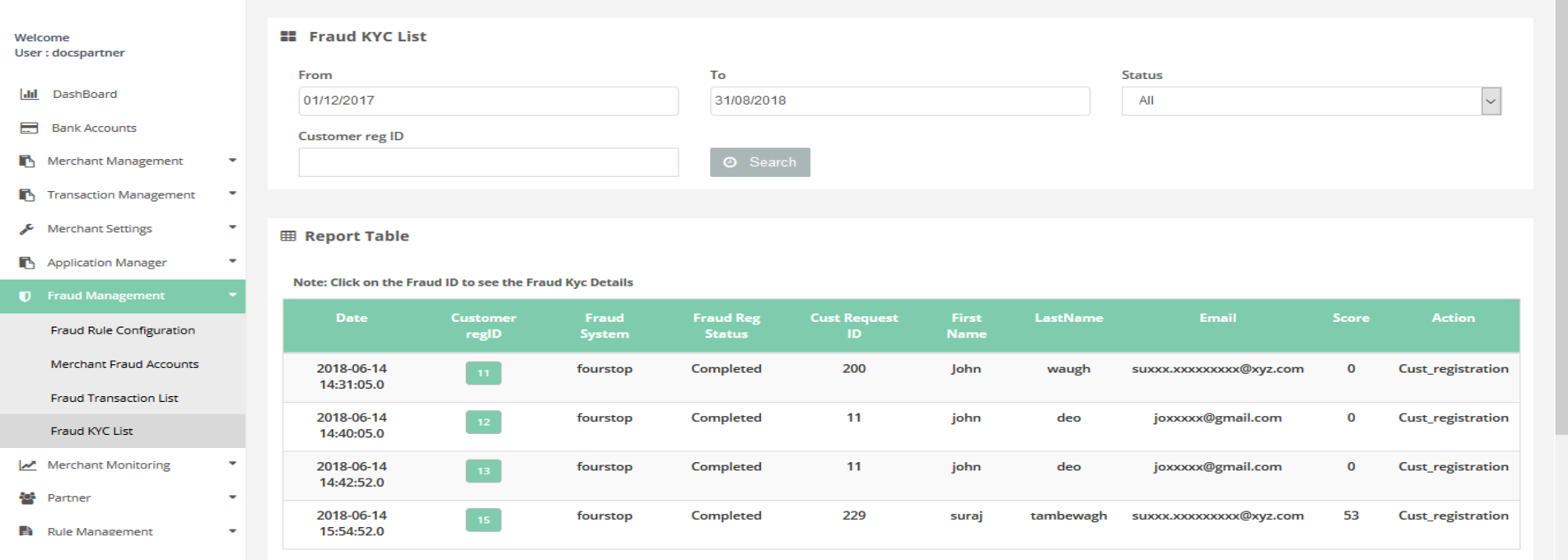
Fraud KYC List
Fraud Management > Fraud upload
In this page you can view all successful transaction, and mark them as Fraud.
How to access page?
After login you need to click on "Fraud Upload" section under "Fraud Management" tab in the left navigation panel of Partner's back office.
Search criteria
- From date
- To Date
- Email ID
- Tracking Id
- Payment ID
- Merchant OrderID
- First Six
- Last Four
- Customer Name
- Status
- Bank Name
- Bank Account ID
- Merchant ID
Result details
The Search Filter gives you below details of successful transactions:
- Member Id
- Account ID
- Tracking ID
- Merchant OrderID
- PaymentID
- Customer Name
- Card Number
- Status
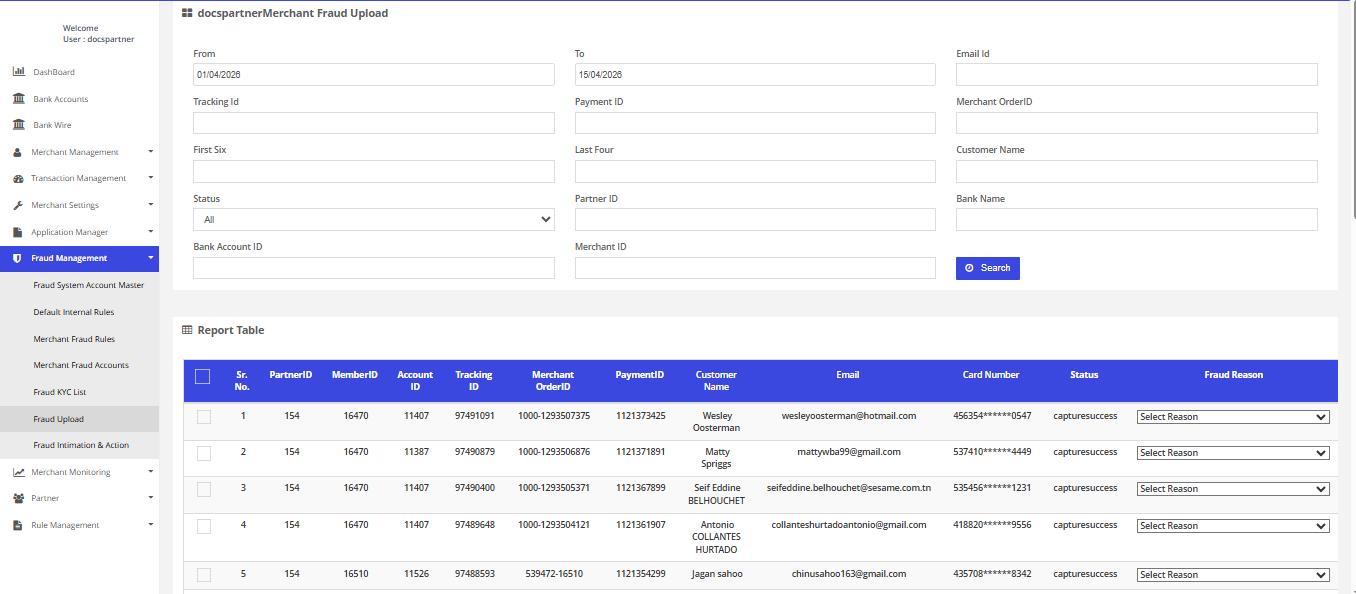
Fraud upload
Fraud Management > Fraud Intimation & Action
In this page you can view all transactions which have been marked as Fraud. In this page, you can also Reverse the Fraud transaction, and Intimate the Merchant about the Fraud Transaction and Reversal.
How to access page?
After login you need to click on "Fraud Intimation & Action" section under "Fraud Management" tab in the left navigation panel of Partner's back office.
Search criteria You can search the successful transactions on below criteria
- From date
- To Date
- Email ID
- Tracking Id
- Payment ID
- Description
- First Six
- Last Four
- Customer Name
- Status
- Bank Name
- Bank Account ID
- Merchant ID
Result details
The Search Filter gives you below details of successful transactions:
- Date
- Tracking ID
- MemberID
- Card Holder's Name
- Amount
- Refunded Amount
- Currency
- Card Num
- IsFraud
- Status
To send Fraud Intimation, select the record, and click on "Fraud Intimation" button.
To refund a transaction and intimate, select the record, select the reason of reversal from "Reason" dropdown, and click on "Fraud Reversal & Intimation" .
